
How to Enable and Configure ILI2510 Touchscreen on the Forlinx OK6254 Platform (Linux 6.1 Kernel)?
In the development of industrial HMI, including smart terminals, self-service kiosks, and embedded display systems, integrating display screens with touch input is a crucial engineering task. During fast-paced project cycles, developers often need to adapt and troubleshoot display modules of different sizes, interfaces, and touch controllers, depending on the specific hardware configurations.
1. Background
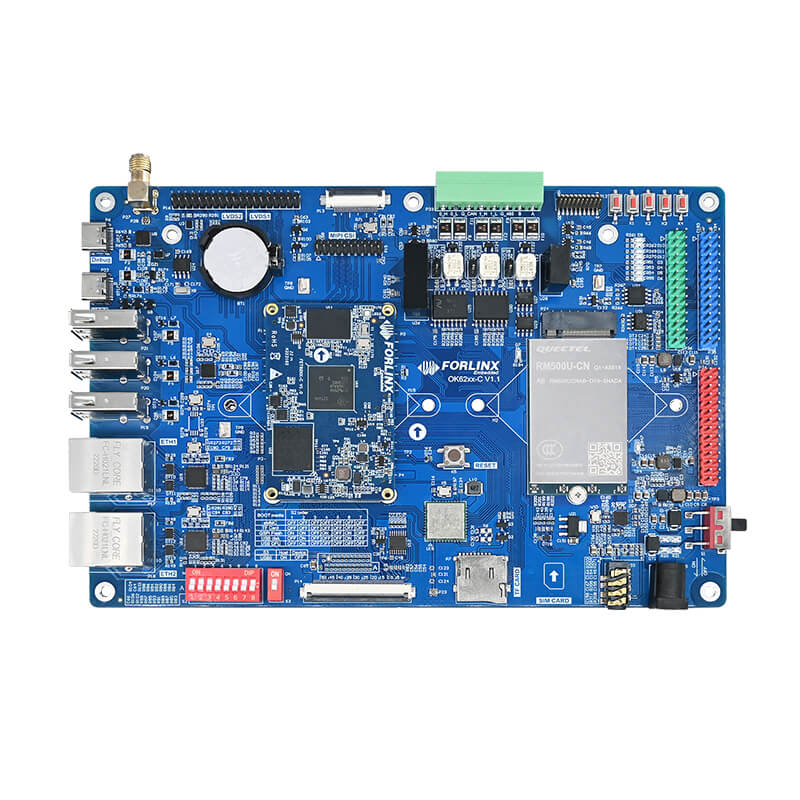
This guide offers a clear, step-by-step process for integrating a 15.6-inch Dual-LVDS display panel with an ILI2510 touch controller on the Forlinx Embedded OK6254-C SBC, operating on the Linux 6.1.33 kernel.
2. Display Configuration
2.1 Display
Modify the forlinx _ contorl node in/OK62xx-linux-kernel/arch/arm64/boot/DTS/Ti/OK62xx.dtsi as shown in the figure below:
2.2 Touchscreen
2.2.1 Adding the Device Tree Node
Refer to the schematic based on the hardware connection at P34 to confirm that the hardware is connected via I2C2.
Consult the chip manual to check its multiplexing functionality (since the default I2C2 interface is already configured, no modifications are necessary).
Perform the multiplexing in /OK62xx-linux-kernel/arch/arm64/boot/dts/ti/OK62xx.dtsi:
Comment out the original interface.
Add it to the usr_led_pins_default node and modify it as shown in the diagram.
AM62X_IOPAD(0x0e0, PIN_INPUT, 7) /* (V20) VOUT0_DATA10 /
AM62X_IOPAD(0x0e4, PIN_OUTPUT, 7) / (AA23) VOUT0_DATA11 */
Add a new node under the main_i2c2 node:
touchscreen: ilitek_251x@41 {
compatible = "ilitek,ili251x";
reg = <0x41>;
pinctrl-0 = <&usr_led_pins_default>;
interrupt-parent = <&main_gpio0>;
interrupts = <55 IRQ_TYPE_EDGE_FALLING>;
reset-gpios = <&main_gpio0 56 GPIO_ACTIVE_LOW>;
wakeup-source;
status = "okay";
};
2.2.2 Loading the Kernel Driver
Enter Ok62xx-linux-kernel to configure menuconfig.
forlinx@ubuntu:~/62xx/OK62xx-linux-sdk$ cd OK62xx-linux-kernel/
forlinx@ubuntu:~/62xx/OK62xx-linux-sdk/OK62xx-linux-kernel$ make menuconfig ARCH=arm64
Load the driver under Device Drivers > Input device support > Touchscreens, selecting the driver in the red box.
Recompile the kernel and place the compiled Image and OK6254-C.dtb files in the /boot directory. Save and restart the development board. During the Uboot phase, select the screen configuration as follows:
2.2.3 Calibrating the Screen and Configuring Rules
1. View the node
card0-LVDS-1 corresponds to lvds1.
2. Set udev
root@OK62xx:/# vi /etc/udev/rules.d/touchscreen.rules
SUBSYSTEM=="input", ACTION=="change|add", ATTRS{name}=="ili210x_i2c", ENV{WL_OUTPUT}="LVDS-1"
Enter the following command to configure udev rules:
3. Use the command vi /etc/xdg/weston/weston.ini to open the screen calibration file and uncomment it. To enable the screen calibration tool.
root@OK62xx:/# vi /etc/xdg/weston/weston.ini
If the file does not exist, add the following content at the end:
[libinput]
touchscreen_calibrator=true
4. Screen Calibration
root@OK62xx:/# weston-touch-calibrator "LVDS-1" --debug -v
After entering the command, touch the red crosses on the screen in sequence to obtain the calibration values.
5. Configure the environment variable
root@OK62xx:/# vi /etc/udev/rules.d/ws-calibrate.rules
Delete the original content and add the following:
SUBSYSTEM=="input", ATTRS{name}=="ili210x_i2c", ENV{LIBINPUT_CALIBRATION_MATRIX}="1.014184 -0.032956 -0.007435 -0.008599 1.035186 0.004496", ENV{ID_INPUT_KEY}="1"
Save and reboot the device.
In the development of embedded display terminals, adapting touchscreens might seem like a minor feature, but it has a significant impact on the overall human-machine interaction experience. For developers who require screen customization, interface expansion, and project implementation, mastering the entire touchscreen adaptation process can greatly enhance product development efficiency and improve troubleshooting capabilities.
The Forlinx Embedded platform offers a reliable hardware foundation along with a comprehensive software development environment. This aids developers in efficiently integrating systems, from low-level drivers to high-level applications. If you are involved in the development of displays, HMI, or industrial terminal products, this article could be a valuable reference for adapting your project.