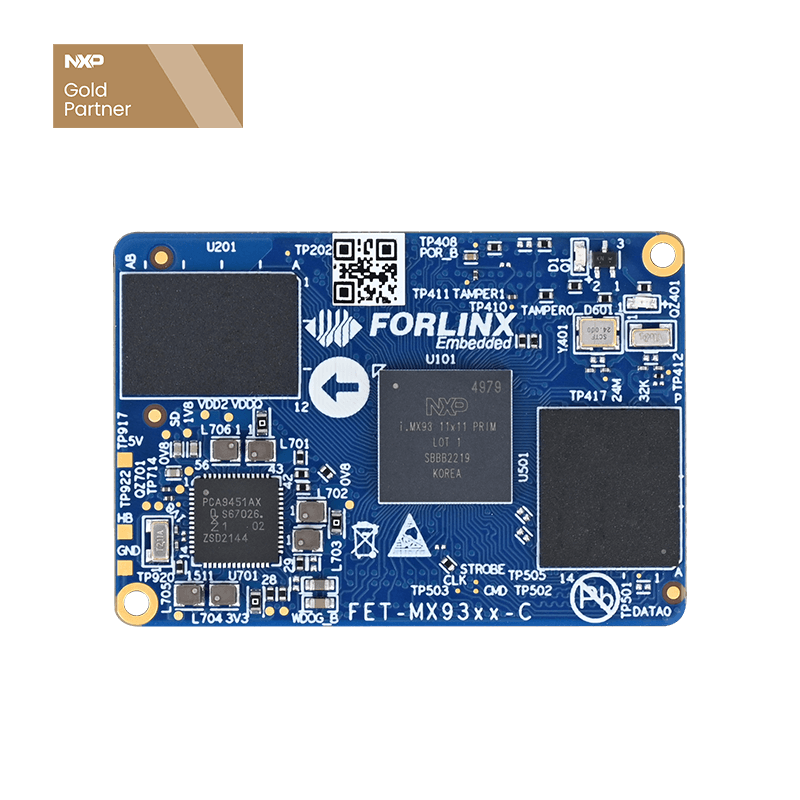

Comprehensive Guide to JDK Deployment on Forlinx OKMX93xx Series with Linux 6.1.36
1. Overview
In embedded Linux product development, Java continues to be valuable alongside traditional C and C++ methods. It is particularly useful for cross-platform applications, utility programs, and certain higher-level business scenarios. For developers aiming to deploy the Java Runtime Environment (JDK) on ARM platforms, it is essential to complete the installation of the JDK, configure environment variables, and validate program runtime. This process is a crucial step in assessing the usability of platform.
This article demonstrates how to deploy the Java Development Kit (JDK) on a Linux 6.1.36 system using the Forlinx embedded OKMX93xx series development board as a reference. It includes basic validation steps and more complex test cases to ensure that the Java Runtime Environment is functioning correctly. This guide is suitable for evaluating development environments, setting up systems, and porting applications. While other platforms can use this method as a reference, adjustments may be required based on their specific software environments.
2. Application Scope
This guide is specifically intended for the Forlinx OKMX93xx series platform operating on the Linux 6.1.36 operating system. Please note that variations in system configuration, directory structure, and software environment may exist across different platforms. Therefore, adjust the steps in this guide to fit your specific setups.
3. JDK Support
The installation and test packages used in this guide include:
jdk-8u381-linux-aarch64.tar.gz
jdk-8-linux-aarch64-demos.tar.gz
Among these, jdk-8u381-linux-aarch64.tar.gz is used for deploying the JDK runtime environment, while jdk-8-linux-aarch64-demos.tar.gz is used for further testing with example programs. According to the original documentation, these two compressed packages can be obtained from the JDK download page provided by Oracle.
http://www.oracle.com/technetwork/java/javase/downloads/jdk8-downloads-2133151.html
4. JDK Deployment Steps
4.1 Installation Packages Preparation
First, prepare the two compressed packages:
jdk-8u381-linux-aarch64.tar.gz (used for JDK installation)
jdk-8-linux-aarch64-demos.tar.gz (used for demo program testing).
4.2 Installation Package Transfer to the Development Board
Copy the jdk-8u381-linux-aarch64.tar.gz package to the development board, for example, to the /home/root/ directory.
4.3 Extraction of the JDK Installation Package
In the terminal on the development board, execute the following commands:
root@ok-mx93:~# tar -xvf jdk-8u381-linux-aarch64.tar.gz
root@ok-mx93:~# ls
After extraction, the jdk1.8.0_381 folder will be created. This directory is the path that will correspond to the JAVA_HOME environment variable later.
4.4 Environment Variables Configuration
Append the following content to the end of the /etc/profile file:
JAVA_HOME=/home/root/jdk1.8.0_381
CLASSPATH=.:$JAVA_HOME/jre/lib/rt.jar:$JAVA_HOME/lib/dt.jar:$JAVA_HOME/lib/tools.jar
PATH=$JAVA_HOME/bin:$PATH
export JAVA_HOME CLASSPATH PATH
JAVA_HOME specifies the JDK installation directory.
CLASSPATH specifies the Java runtime class library path.
PATH adds Java commands like java and javac to the system's environment variables for easy access.
4.5 Configuration Application
After configuring, execute the following command to make the environment variables effective immediately:
source /etc/profile
If this command is not executed, the newly added Java environment variables may not be recognized in the current terminal session.
4.6 JDK Version Check
Run the following command to verify if the JDK is installed successfully:
java -version
If the system can output the version information, it means the JDK installation and environment variable configuration are successful.
5. Basic Functionality Verification
Copy the test program to the current directory.
Then, execute the test program for verification:
The result is correct.
6. Advanced Program Testing
Once the basic verification is successful, the document further tests the Java environment using the example programs provided in jdk-8-linux-aarch64-demos.tar.gz. After extracting the package, a jdk1.8.0_341 directory is created, which contains two folders: sample and demo, for further Java environment verification.
6.1 Navigation to the Test Directory
Enter the directory:
root@ok-mx93:~# cd jdk1.8.0_341/sample/forkjoin/mergesort/
There are test files such as MergeDemo.java and MergeSort.java.
6.2 Test Program Compilation
Run the following command to compile the program:
root@ok-mx93:~/jdk1.8.0_341/sample/forkjoin/mergesort$ javac MergeDemo.java
After compiling, the following .class files will be generated in the directory:
MergeDemo$1.class
MergeDemo.java
MergeDemo$Configuration.class
MergeSort$MergeSortTask.class
MergeDemo$Range.class
MergeSort.class
MergeDemo.class
MergeSort.java
The results show that the javac compiler is operating correctly on the target platform, and the Java source code has been accurately converted into the corresponding bytecode files.
6.3 Test Program Execution
Execute the following command to run the example program:
root@ok-mx93:~/jdk1.8.0_341/sample/forkjoin/mergesort$ java MergeDemo
The program outputs as follows:
Default configuration. Running with parameters: 20000 20000 10 2 2 10
Time in milliseconds. Y-axis: number of elements. X-axis parallelism used.
2 4 6 8 10 12 14 16 18 20
20000: 7 8 9 5 7 8 6 7 6 5
40000: 9 9 11 11 11 12 11 10 13 14
60000: 13 14 15 15 14 16 16 17 16 15
80000: 19 20 21 21 22 23 22 21 22 23
100000: 24 25 26 25 28 26 28 27 28 26
120000: 28 29 31 31 31 31 36 33 32 31
140000: 34 35 40 35 38 42 38 42 37 38
160000: 53 58 54 57 57 56 45 46 46 47
180000: 61 61 61 64 63 65 63 60 62 52
200000: 68 65 65 66 68 73 73 69 75 67
Total: 316 324 333 330 339 352 338 332 337 318
The validation process outlined above indicates that the OKMX93xx platform has successfully completed the installation of the JDK, configured the environment variables, compiled Java source code, and executed a demo program. This means that the platform not only supports the Java Runtime Environment but also offers fundamental capabilities for Java development and verification. This makes it a valuable resource for future application porting and project evaluation.
7. Summary
By following the steps outlined in this guide, you can successfully complete JDK 8 deployment, configure environment variables, and test demo programs on the OKMX93xx Linux 6.1.36 system. This platform provides a clear and reproducible path for developers who are working on porting Java applications, validating functionality, or conducting preliminary technical assessments on ARM platforms. Therefore, the OKMX93xx serves as an important reference for future project