

How to Deploy YOLOv8 on OK3576 for Camera-Based Object Detection
With the rapid advancement of edge AI and intelligent vision applications, NPU-powered on-device object detection is progressively emerging as a core capability across industrial vision, security surveillance, smart devices, and other related fields. YOLOv8, currently one of the leading real-time object detection algorithms, achieves an excellent trade-off between accuracy and speed, and has been widely adopted in various embedded AI platforms.
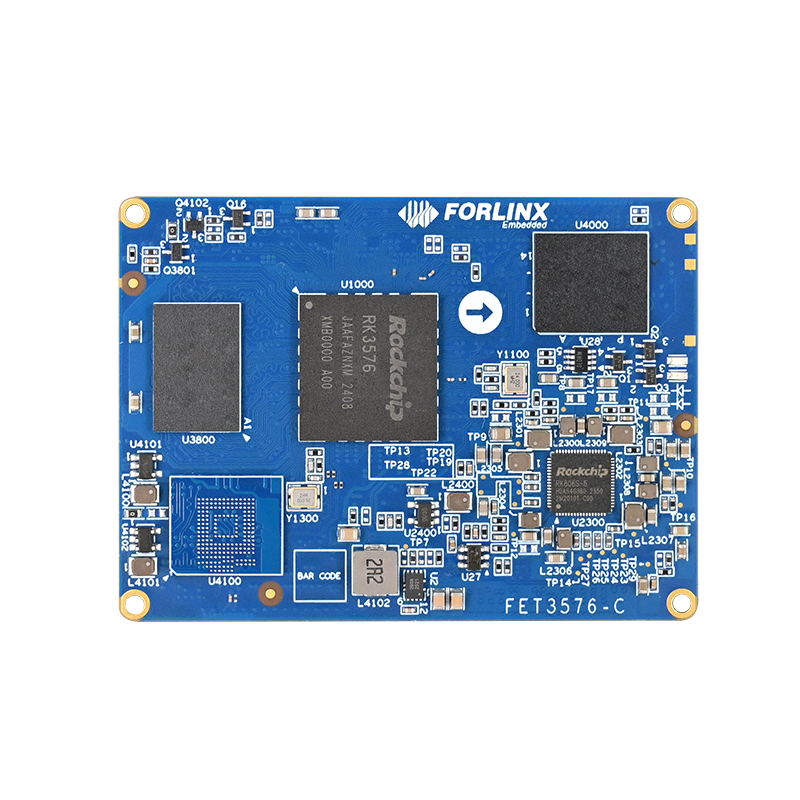
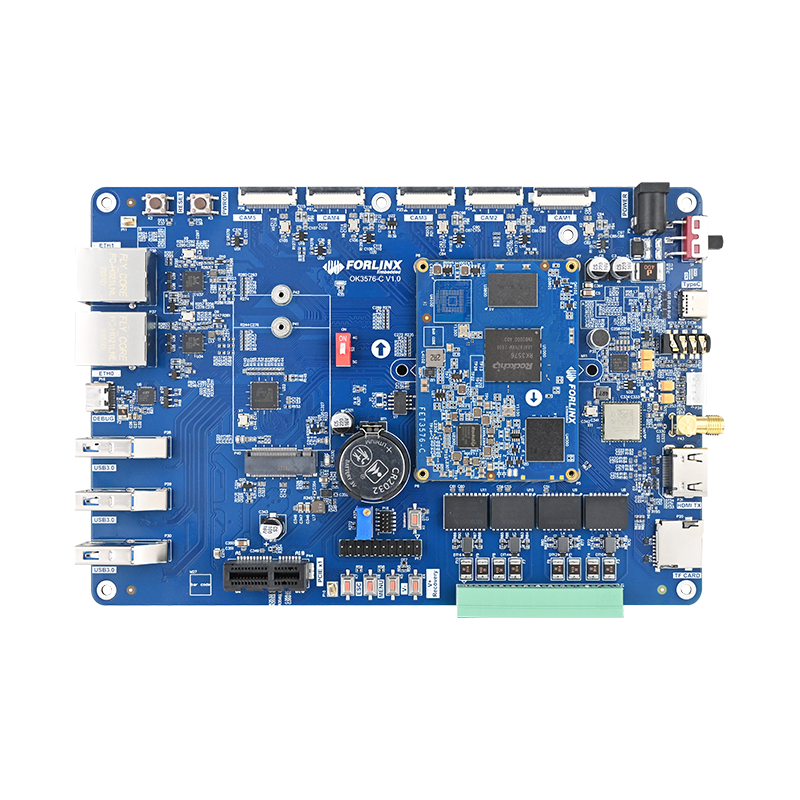
This guide is based on the Forlinx Embedded OK3576-C development board—which features the Rockchip RK3576 processor with a built-in NPU—and demonstrates the complete process of converting official pre-trained YOLOv8 models from PyTorch format to RKNN format, followed by deploying the model on-board and performing real-time object detection inference using a USB camera. The focus is placed on the end-to-end workflow of model conversion, deployment, and inference, without covering model training or algorithm tuning. The aim is to help developers quickly complete the full engineering pipeline from ''model to edge application''.
1. Preparation
1.1 Hardware
UVC-compliant USB camera
OK3576-C development board
MIPI or HDMI display
1.2 Software Environment
PC (virtual machine): Ubuntu 22.04
OK3576-C board OS: Forlinx Desktop 24.04
PC side: RKNN Toolkit 2-2.3.2 (please refer to the environment setup guide for details)
Board side: RKNN Toolkit 2-Lite 2 (please refer to the environment setup guide for details)
1.3 Required Files
Rockchip-modified YOLOv8 source code
(The yolov10 model uses the source code: ultralytics_yolov10-main.zip )
(The yolo11 model uses the source code: ultralytics_yolo11-main.zip )
Conversion code officially provided by RK: rknn_model_zoo.zip
On-Board Inference Code rknn-yolo.zip
2. Model Download
Download the YOLOv8 series models from GitHub at the following address:
https://github.com/ultralytics/assets/releases
Upon accessing the webpage, locate the ''Assets'' section, expand all contents as shown in Figure 2.1, and select the corresponding model. This article uses the yolov8n.pt file as an example. (If unable to download, refer to the attachment.) yolov8n.pt
Figure 2.1 Pre-trained Model Download Page
3. Model Conversion
Conversion process: .pt → .onnx → .rknn
3.1 Convert .pt to .onnx
(1) Navigate into the Rockchip-modified YOLOv8 source code directory (ultralytics_yolov8-main) and place the downloaded .pt file there. In this article, the .pt file is placed in a directory at the same level as ultralytics, as shown in Figure 3.1.
Figure 3.1 Location of the .pt file
(2) Create a conversion script named pt2onnx.py with the following content:
from ultralytics import YOLO
if __name__ == "__main__":
model = YOLO(r"yolov8n.pt") #Path to the .pt file
model.export(format="rknn")
Note: The format parameter must be set to "rknn". The output detection head differs when specifying "onnx" versus "rknn".
(3) Run the script
python pt2onnx.py
The converted .onnx file will be generated in the same directory as the .pt file. A successful conversion log is shown in Figure 3.2. The output shape must consist of nine detection heads, and the resulting .onnx file size should not be too small. A small size indicates an incomplete conversion.
Figure 3.2 Successful pt2onnx Conversion Log
3.2 Convert .onnx to .rknn
(1) Locate the rknn_model_zoo file provided by Rockchip and copy the converted .onnx file to the following path:
cp /ultralytics_yolov8-main/yolov8n.onnx /rknn_model_zoo/examples/yolov8/model
(2) Navigate to the specified path and run the convert.py script:
cd /rknn_model_zoo/examples/yolov8/python
python convert.py ../model/yolov8n.onnx rk3576 i8 ../model/yolov8n.rknn
Figure 3.3 Successful onnx2rknn Conversion Log
4. Model Inference
(1) Locate the on-board inference directory rknn-yolo. Copy the converted .rknn file to the /rknn-yolo/rknnModel directory.
(2) Modify the main.py file to point to the path of the .rknn model as shown in the example.
(3) Connect the hardware devices and run main.py to perform inference:
python main.py
5. Recognition Results
YOLOv8 achieves an average frame rate of approximately 30 FPS for real-time object detection using a camera on the RK3576 board. The recognition effect is shown in Figure 5.1, and the real-time frame rate is displayed in Figure 5.2.
Figure 5.1 Recognition Result
Figure 5.2 Average Frame Rate per 30 Frames from the Camera
Through the steps outlined above, the YOLOv8 model has been successfully converted from .pt to .onnx and finally to .rknn on the OK3576 platform. Leveraging the built-in NPU of the RK3576 processor, real-time object detection inference using a USB camera has been implemented. Under the current test conditions, the YOLOv8n model consistently achieves real-time processing performance of approximately 30 FPS. This validates the strong computational power and energy efficiency of the RK3576 for edge AI vision applications.