
IMX577 Camera Adaptation Guide Based on the RK3588 Linux Buildroot Platform
This article primarily explains how to adapt the IMX577 module on the RK3588 platform using the Linux 5.10.66 Buildroot system.
I. Hardware Interface
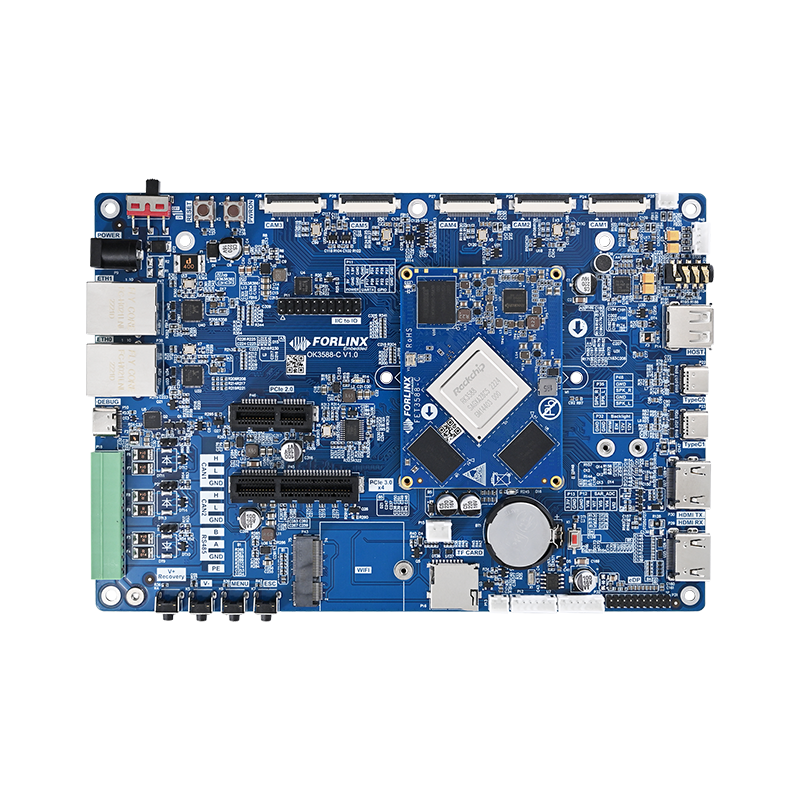
By referring to the development board schematic, you can clearly see the hardware design of the MIPI CSI interface on the OK3588 development board.
For this test, the CAM1 interface is used as an example. Before selecting a module, it is crucial to ensure that the pinout of the chosen camera module matches the pinout of the camera interface on the RK3588 carrier board.
II. Kernel Configuration
If you directly apply the patch provided in the attachments, you can skip “1. Driver Addition” and “2. Device Tree Modification” and proceed directly to compiling the kernel image.
Place the patch file in the kernel directory of your source code. Execute the following command in the kernel directory to apply the patch:
patch -p1 < OK3588_linux5.10.66_imx577_all.patch
1. Driver Addition
Since the IMX577 driver is not included in the Linux 5.10.66 kernel source code, it needs to be added. The corresponding driver file is provided in the attachments.
Copy imx577.c to the following path in your source code:
OK3588-linux-fs/kernel/drivers/media/i2c/
Then, modify the corresponding Makefile, Kconfig, and defconfig files to add the driver configuration to the kernel. You can refer to the following patch for the necessary modifications.
diff --git a/arch/arm64/configs/OK3588-Linux_defconfig b/arch/arm64/configs/OK3588-Linux_defconfig
index 3506488cf..f3c9c1d9e 100644
--- a/arch/arm64/configs/OK3588-Linux_defconfig
+++ b/arch/arm64/configs/OK3588-Linux_defconfig
@@ -335,6 +335,7 @@ CONFIG_VIDEO_OV7251=y
CONFIG_VIDEO_OV13850=y
CONFIG_VIDEO_VM149C=y
CONFIG_VIDEO_OV5645=y
+CONFIG_VIDEO_IMX577=y
# CONFIG_VGA_ARB is not set
CONFIG_DRM=y
CONFIG_DRM_IGNORE_IOTCL_PERMIT=y
diff --git a/drivers/media/i2c/Kconfig b/drivers/media/i2c/Kconfig
index 6201d6d3f..d1a97cc91 100644
--- a/drivers/media/i2c/Kconfig
+++ b/drivers/media/i2c/Kconfig
@@ -1200,6 +1200,17 @@ config VIDEO_IMX355
To compile this driver as a module, choose M here: the
module will be called imx355.
+config VIDEO_IMX577
+ tristate "Sony IMX577 sensor support"
+ depends on I2C && VIDEO_V4L2 && VIDEO_V4L2_SUBDEV_API
+ depends on MEDIA_CAMERA_SUPPORT
+ help
+ This is a Video4Linux2 sensor driver for the Sony
+ IMX577 camera.
+
+ To compile this driver as a module, choose M here: the
+ module will be called imx577.
+
config VIDEO_JX_K17
tristate "Soi JX_K17 sensor support"
depends on I2C && VIDEO_V4L2
diff --git a/drivers/media/i2c/Makefile b/drivers/media/i2c/Makefile
index cc1b7ef4b..49b5c22bb 100644
--- a/drivers/media/i2c/Makefile
+++ b/drivers/media/i2c/Makefile
@@ -182,6 +182,7 @@ obj-$(CONFIG_VIDEO_IMX378) += imx378.o
obj-$(CONFIG_VIDEO_IMX415) += imx415.o
obj-$(CONFIG_VIDEO_IMX464) += imx464.o
obj-$(CONFIG_VIDEO_IMX355) += imx355.o
+obj-$(CONFIG_VIDEO_IMX577) += imx577.o
obj-$(CONFIG_VIDEO_JX_K17) += jx_k17.o
obj-$(CONFIG_VIDEO_MAX9286) += max9286.o
obj-$(CONFIG_VIDEO_MAX96714) += max96714.o
2. Device Tree Modification
This modification is based on the 4lane configuration of the IMX577 camera module. On the OK3588 carrier board, only the MIPI CSI interfaces of CAM1, CAM2, and CAM3 support 4 lanes in hardware. This example uses CAM1 for demonstration.
To configure CAM1 in the device tree, please refer to the following patch for the necessary modifications.
diff --git a/arch/arm64/boot/dts/rockchip/OK3588-C-Camera.dtsi b/arch/arm64/boot/dts/rockchip/OK3588-C-Camera.dtsi
index eaec68b64..28e4b05ae 100644
--- a/arch/arm64/boot/dts/rockchip/OK3588-C-Camera.dtsi
+++ b/arch/arm64/boot/dts/rockchip/OK3588-C-Camera.dtsi
@@ -60,16 +60,8 @@
      status = "okay";
      clock-frequency = <400000>;

-    vm149c_0: vm149c@0c {
-        compatible = "silicon touch,vm149c";
-        status = "okay";
-        reg = <0x0c>;
-        rockchip,camera-module-index = <0>;
-        rockchip,camera-module-facing = "back";
-   };
-
-    cam1_ov13850: cam1_ov13850@10 {
-        compatible = "ovti,ov13850";
+    cam1_imx577: cam1_imx577@10 {
+        compatible = "sony,imx577";
         status = "okay";
         reg = <0x10>;

@@ -82,12 +74,11 @@
          rockchip,camera-module-facing = "back";
          rockchip,camera-module-name = "forlinx";
          rockchip,camera-module-lens-name = "default";
-   lens-focus = <&vm149c_0>;

          port {
-            cam1_ov13850_out: endpoint {
+            cam1_imx577_out: endpoint {
                  remote-endpoint = <&mipi_in_0_ucam1>;
-                data-lanes = <1 2>;
+                data-lanes = <1 2 3 4>;
              };
          };
      };
@@ -104,8 +95,8 @@
              #size-cells = <0>;
              mipi_in_0_ucam1: endpoint@1 {
                  reg = <1>;
-                remote-endpoint = <&cam1_ov13850_out>;
-                data-lanes = <1 2>;
+                remote-endpoint = <&cam1_imx577_out>;
+                data-lanes = <1 2 3 4>;
              };
          };
          port@1 {
3. Supplementary Configuration Notes
Because the data transmitted by the IMX577 requires ISP processing, it is necessary to invoke the rkisp module during the camera data pipeline processing to obtain the processed data from the rkisp node eventually.
Currently, in the OK3588 Linux 5.10.66 Buildroot system, the default camera configuration supports the OV13850 on CAM1 and CAM2. For example, the topology for CAM1 is configured as:
mipicamera0 --> csi2_dcphy0 --> mipi0_csi2 --> rkcif_mipi_lvds --> rkcif_mipi_lvds_sditf --> rkisp0_vir0
In contrast, CAM3, CAM4, and CAM5 by default support the OV5645. This camera module’s captured data does not require additional ISP processing. Therefore, the device tree topology configuration for these ports does not pass through rkisp. For example, the topology for CAM3 is:
mipicamera2 --> csi2_dphy0 --> mipi2_csi2 --> rkcif_mipi_lvds2
Therefore, if you want to configure the IMX577 on the CAM3 interface, you also need to add the rkisp node to its configuration, generally following the device tree settings for CAM1 and CAM2 as a reference.
For an explanation related to pipeline configuration, please refer to the screenshot from RK’s documentation provided below.
III. ISP Configuration File Explanation
After completing the driver loading and device tree topology configuration at the kernel stage, you can already capture image data from the rkisp video node. However, the image data at this point has not been processed by the rkisp and will likely appear predominantly green. To get the rkisp functioning, a configuration file is also required.
The rkisp configuration file is stored in the /etc/iqfiles/ directory of the filesystem, typically with a .json extension. It contains various parameters for ISP calibration.
You can check if rkisp is operational by verifying whether the rkaiq_3A_server service is running. Use the ps and grep commands to check for its process.
root@ok3588:/# ps -ef | grep 3A
root 1408 1 0 14:48 ? 00:00:00 /bin/sh -c /usr/bin/rkaiq_3A_server 2>&1 | logger -t rkaiq_3A
root 1410 1408 0 14:48 ? 00:00:00 /usr/bin/rkaiq_3A_server
root 1411 1408 0 14:48 ? 00:00:00 logger -t rkaiq_3A
root 1559 1552 0 14:49 ttyFIQ0 00:00:00 grep 3A
Currently, there is no IMX577 .json file in this path, so the 3A service will not start.
An imx577_forlinx_default.json file is provided in the attachments.
Note: The naming of this JSON file is significant. It must correspond to the rockchip,camera-module-name and rockchip,camera-module-lens-name properties in the device tree.
Currently, these properties are set to forlinx and default respectively, hence the corresponding file name imx577_forlinx_default.json.
Simply copy this JSON file to the /etc/iqfiles/ directory on the development board’s filesystem. Then, execute the sync command to save and reboot to restart. After reboot, the 3A service should be up and running.
For detailed camera configuration on the RK3588, you can refer to the relevant RK documentation located in the following directory of the source SDK:
OK3588-linux-fs/docs/Common/CAMERA/ISP3X
On the development board, you can check the current rkaiq version in the image using the following command.
root@ok3588:/# strings /usr/lib/librkaiq.so | grep -w AIQ
AIQ v3.0x8.8
AIQ: %s
E:AIQ IPC UNKNOWN CMD: %d
IV. Debugging
If the camera module does not function correctly after the above modifications, you can use i2ctool to check if the device ID of the camera module is detected on the I2C bus.
root@ok3588:/# i2cdetect -r -y 3
0 1 2 3 4 5 6 7 8 9 a b c d e f
00: -- -- -- -- -- -- -- --
10: UU -- -- -- -- -- -- -- -- -- -- -- -- -- -- --
20: -- -- -- -- -- -- -- -- -- -- -- -- -- -- -- --
30: -- -- -- -- -- -- -- -- -- -- -- -- -- -- -- --
40: -- -- -- -- -- -- -- -- -- -- -- -- -- -- -- --
50: -- -- -- -- -- -- -- -- -- -- -- -- -- -- -- --
60: -- -- -- -- -- -- -- -- -- -- -- -- -- -- -- --
70: -- -- -- -- -- -- -- --
Note that the device ID may differ for different camera modules. Here, 10 represents the camera module’s ID. If the corresponding driver is paired correctly, it will show as UU. If the driver is not paired, it will only display 10.
You can also check the kernel log using dmesg to determine the status of the camera module.
[ 5.199722] imx577 3-0010: driver version: 00.01.05
[ 5.199731] imx577 3-0010: Get hdr mode failed! no hdr default
[ 5.199766] imx577 3-0010: Failed to get power-gpios, maybe no use
[ 5.201129] imx577 3-0010: Looking up avdd-supply from device tree
[ 5.201140] imx577 3-0010: Looking up avdd-supply property in node /i2c@feab0000/cam1_imx577@10 failed
[ 5.202657] imx577 3-0010: supply avdd not found, using dummy regulator
[ 5.202733] imx577 3-0010: Looking up dovdd-supply from device tree
[ 5.202744] imx577 3-0010: Looking up dovdd-supply property in node /i2c@feab0000/cam1_imx577@10 failed
[ 5.202759] imx577 3-0010: supply dovdd not found, using dummy regulator
[ 5.202793] imx577 3-0010: Looking up dvdd-supply from device tree
[ 5.202803] imx577 3-0010: Looking up dvdd-supply property in node /i2c@feab0000/cam1_imx577@10 failed
[ 5.202817] imx577 3-0010: supply dvdd not found, using dummy regulator
[ 5.207877] imx577 3-0010: Detected Sony imx0577 sensor
[ 5.272651] rockchip-csi2-dphy csi2-dcphy0: dphy0 matches m00_b_imx577 3-0010:bus type 5
Check the status of camera module node creation using the v4l2-ctl command
v4l2-ctl --list-devices
Use the following command to locate the rkisp_mainpath video node. Typically, data from the rkisp pipeline is captured at the rkisp_mainpath node.
grep -H '' /sys/class/video4linux/video*/name4l2-ctl --list-devices
Preview using the gsteramer command
gst-launch-1.0 v4l2src device=/dev/video40 ! video/x-raw, format=NV12, width=1024,height=600, framerate=30/1 ! waylandsink